If you’ve ever clicked on a link and landed on a page that says something went wrong — you’ve run into a website error. It’s one of those frustrating moments that can leave users feeling stuck, and if left ignored, it can quietly damage your business in ways you might not notice right away. These errors are more common than you think — and they’re rarely a reason to panic.
The good news is that most website errors are very fixable once you understand what they actually mean. You don’t need to be a tech expert — you just need the right explanation. This guide breaks it all down in plain, simple language so you can identify the problem and take the right steps to fix it.
What Is a Website Error and Why Does It Happen?
A website error is basically a message your browser or server sends when something goes wrong during a page request. Think of it like knocking on a door — sometimes nobody answers, sometimes the door doesn’t exist, and sometimes the person inside is having a bad day and can’t come to the door. Each situation gets its own error code.
These errors happen for all sorts of reasons — a page gets deleted, a server crashes, a file goes missing, or a plugin breaks something in the background. Some are caused by the user, some by the website owner, and some by the server itself. Knowing which is which makes fixing them a whole lot easier.
Most Common Website Errors You’ll Run Into
Let’s go through the errors you’ll see most often — what they mean and what usually causes them.
404 Error — Page Not Found
The 404 error page not found is the most common one on the internet. It shows up when someone tries to visit a page that doesn’t exist anymore — either it was deleted, moved, or the URL was typed incorrectly.
For users it’s annoying. For website owners it’s a problem because it breaks the experience and can hurt your SEO. The fix is usually simple — either restore the page, redirect the old URL to a new one, or create a helpful custom 404 page that guides users back to where they need to go.
500 Internal Server Error
The website error 500 is a generic “something went wrong on the server” message. Unlike a 404, the URL is correct — the server just couldn’t process the request. This is usually caused by a broken plugin, a corrupted file, a database issue, or a misconfigured server setting.
It can feel scary because the message doesn’t tell you exactly what went wrong. The best starting point is to check your error logs, deactivate recent plugins, and check your .hatches file. If you’re on WordPress, a faulty plugin is the most common culprit.
403 Forbidden Error
The 403 forbidden error on website means the server understands your request but is refusing to fulfil it. It’s like being told “we know you’re there, but you’re not allowed in.” This usually happens due to incorrect file permissions, a misconfigured security plugin, or an IP block.
Fixing it typically involves checking your folder permissions, reviewing your security settings, or whitelisting your IP address.
502 Bad Gateway
A 502 Bad Gateway error means one server received an invalid response from another server it was trying to communicate with. This often happens on websites that use a proxy or CDN. It’s usually a temporary issue — refreshing the page often fixes it. If it keeps happening, the problem is likely with your hosting provider or CDN configuration.
503 Service Unavailable
The website 503 error means the server is temporarily unavailable — usually because it’s overloaded with traffic or down for maintenance. It’s one of the more SEO-friendly errors because it signals to search engines that the downtime is temporary. If your site shows a 503 for too long though, search engines will start reducing how often they crawl it.
Other Website Errors Worth Knowing About
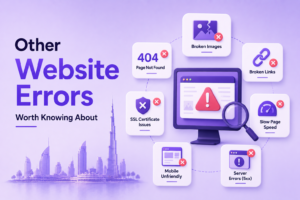
Beyond the big five, there are a few more errors that pop up regularly.
A DNS Resolution Error happens when the browser can’t find the server because the domain name isn’t pointing to the right place — common after a domain transfer or DNS change.
A Connection Timeout Error means the server took too long to respond. This is often caused by heavy server load, slow hosting, or network issues on the user’s end.
Browser Compatibility Issues aren’t always shown as error codes, but they cause pages to display incorrectly or break entirely depending on the browser being used. Always test your website across multiple browsers.
A Database Connection Error usually shows up as a white screen or a specific error message telling you the site can’t connect to its database. On WordPress, this is often caused by incorrect database credentials or a full database.
How Website Errors Hurt Your SEO and Users
Website errors are not just a technical annoyance — they have real consequences that affect both your users and your search engine rankings. Ignoring them can silently cost you traffic, trust, and visibility over time.
- When users land on a broken page, they leave immediately, which increases your bounce rate and signals to search engines that your site isn’t providing a good experience.
- Broken links and missing pages waste your crawl budget — the limited number of pages search engines crawl on your site during each visit. If search bots keep hitting dead ends, important pages might not get crawled or indexed properly.
- Page load failure and server down errors are even more serious. If your site goes down frequently, search engines will notice and your rankings can drop. Users who visit during downtime are unlikely to come back.
- If your site is in maintenance mode for too long without proper handling, it can cause the same issues as a real outage.
Keeping your site error-free is not just good for users, it’s essential for SEO. The good news is that once you understand what these errors mean, fixing them becomes a lot more manageable.
How to Check Your Website for Errors
You don’t need to wait for users to complain before catching errors. There are several reliable ways to check website error issues proactively. Google Search Console is the first place to look — it shows you crawl errors, pages that couldn’t be indexed, and any major issues Google has found on your site, and it’s completely free.
A website error checker tool like Screaming Frog, Ahrefs Site Audit, or SEMrush will crawl your entire website and flag broken links, missing pages, redirect issues, and server errors — so run one of these regularly, at least once a month. Your hosting control panel also has error logs that show exactly what’s been going wrong on the server side. If something breaks and you can’t figure out why, the error logs are usually where the answer is hiding.
How to Find 404 Errors on Your Website
Finding 404 errors specifically is worth doing regularly because they’re so common and easy to miss. Here’s how to find 404 errors on your website without much technical knowledge:
Step 1: Check Google Search Console Go to the Coverage section — it shows all pages returning a 404 status. It’s the easiest and most reliable starting point.
Step 2: Use a Website Error Checker Tool Use a tool like Screaming Frog or Ahrefs to check website for 404 errors. Enter your domain, let it crawl, and it will return a full list of every broken URL along with where those links are coming from.
Step 3: Fix the Errors Once you know how to find 404 errors on your website, simply restore the page, set up a 301 redirect, or update the internal links pointing to that URL.
The sooner you catch and fix 404 errors, the better — both for your users and your SEO. Making this a regular part of your site maintenance routine will help you stay ahead of broken links before they start costing you traffic and rankings.
How to Fix Website Errors — Step by Step
Now let’s bring it all together. Here’s a simple process to follow when you run into how to fix website errors on your site:
Step 1: Identify the Error Code Each code tells you a different story — understand what you’re dealing with before trying to fix anything.
Step 2: Check if It’s a Server or Content Issue 4XX errors are usually about missing or restricted content. 5XX errors are server-side problems.
Step 3: Use Your Tools Google Search Console, your hosting error logs, and a site audit tool will point you in the right direction faster than guessing.
Step 4: Fix the Root Cause Don’t just make the error disappear on the surface — find out why it happened and fix that. A 301 redirect covers a 404, but if the broken link is still sitting in your navigation, new users will keep hitting dead ends.
Step 5: Test and Monitor After fixing, test the page manually, request a recrawl in Google Search Console, and keep monitoring for new errors popping up.
Fixing website errors doesn’t have to be overwhelming — it just takes a clear process and the right tools. Stay consistent with your checks and your site will be in a much healthier place, both for your users and for search engines.
Final Thoughts
Website errors are a normal part of running a site — but leaving them unfixed is not. Every broken page, every server error, and every failed connection is a small leak that adds up over time. The good news is that with the right tools and a little regular attention, you can keep your site clean, fast, and fully functional.
If all of this feels like a lot to manage on your own — that’s completely understandable. Our team specializes in website health, technical SEO, and fixing the kinds of errors that quietly hold your site back. We’ll audit your site, find the problems, and fix them properly.
Get a Free Website Audit — Let’s find out what’s going wrong and fix it together.
FAQs
What is a website error?
A website error is a message your browser or server sends when something goes wrong during a page request — like a missing page, a server crash, or a failed connection.
What is the most common website error?
The 404 error (Page Not Found) is the most common one. It appears when a page has been deleted, moved, or the URL has been typed incorrectly.
Do website errors affect SEO?
Yes. Errors like broken links, missing pages, and server downtime can increase your bounce rate, waste your crawl budget, and cause your rankings to drop over time.
How can I check my website for errors?
You can use Google Search Console, a website error checker tool like Screaming Frog or Ahrefs, or check your hosting control panel’s error logs.
Can I fix website errors without technical knowledge?
Most common errors are very fixable with the right tools and a clear process. This guide walks you through it step by step — no technical expertise required.